Resend a pending invitation
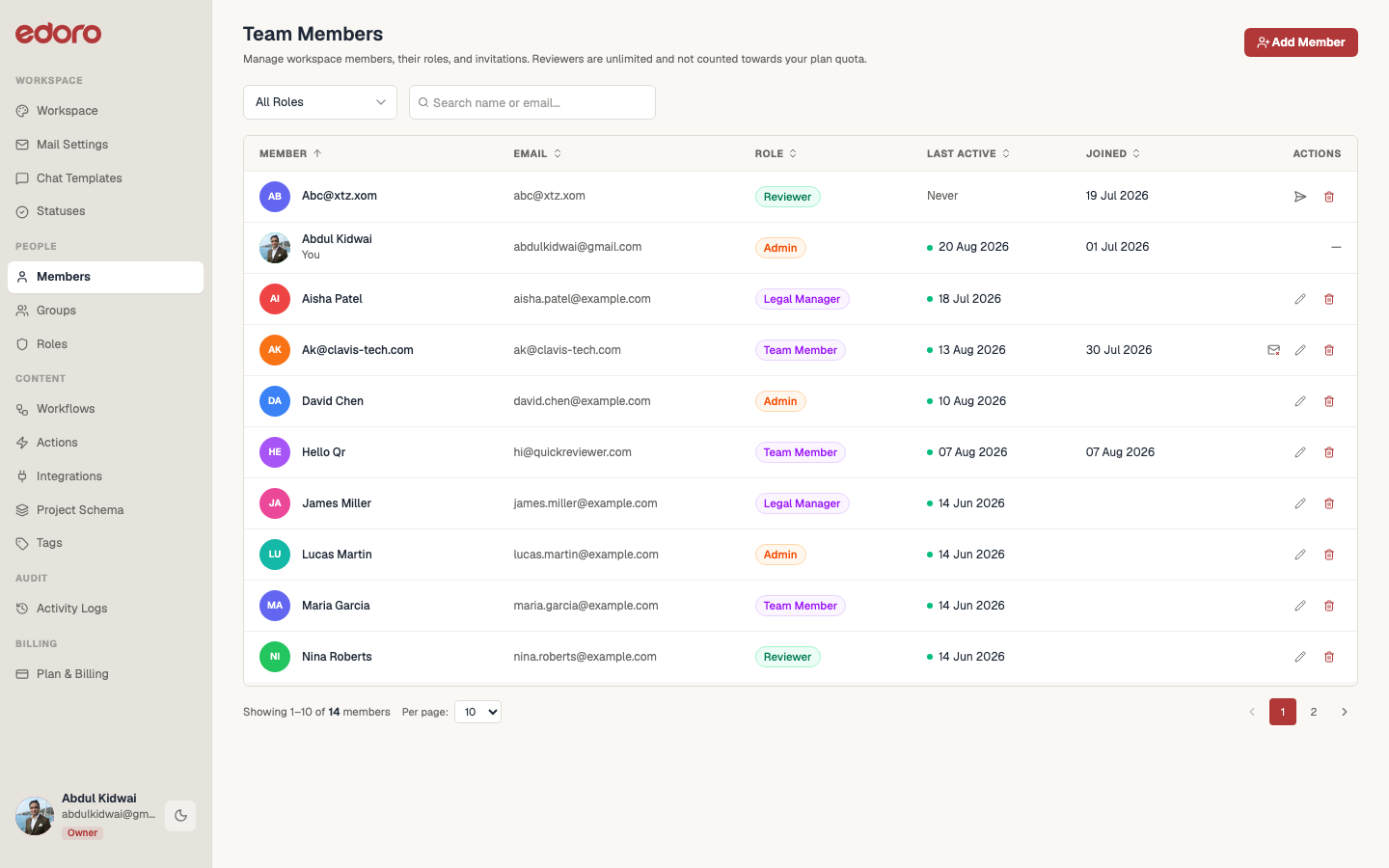
A member shows as pending until they accept their invite (their Last Active column reads "Never"). Only pending members show a resend option.
Steps
- On the Team page, find the pending member — look for the send icon on their row (tooltip: "Resend invitation to
{email}"). - Click it to open the Resend Invitation dialog.
- Optionally set a new password to include in the invite email, or leave it blank.
- Click Send.
You'll see a confirmation toast: "Invitation resent successfully." There's no limit on how many times you can resend an invitation.