Invite and manage team members
Admins and workspace owners invite teammates and manage their membership from Admin Console → People → Members.
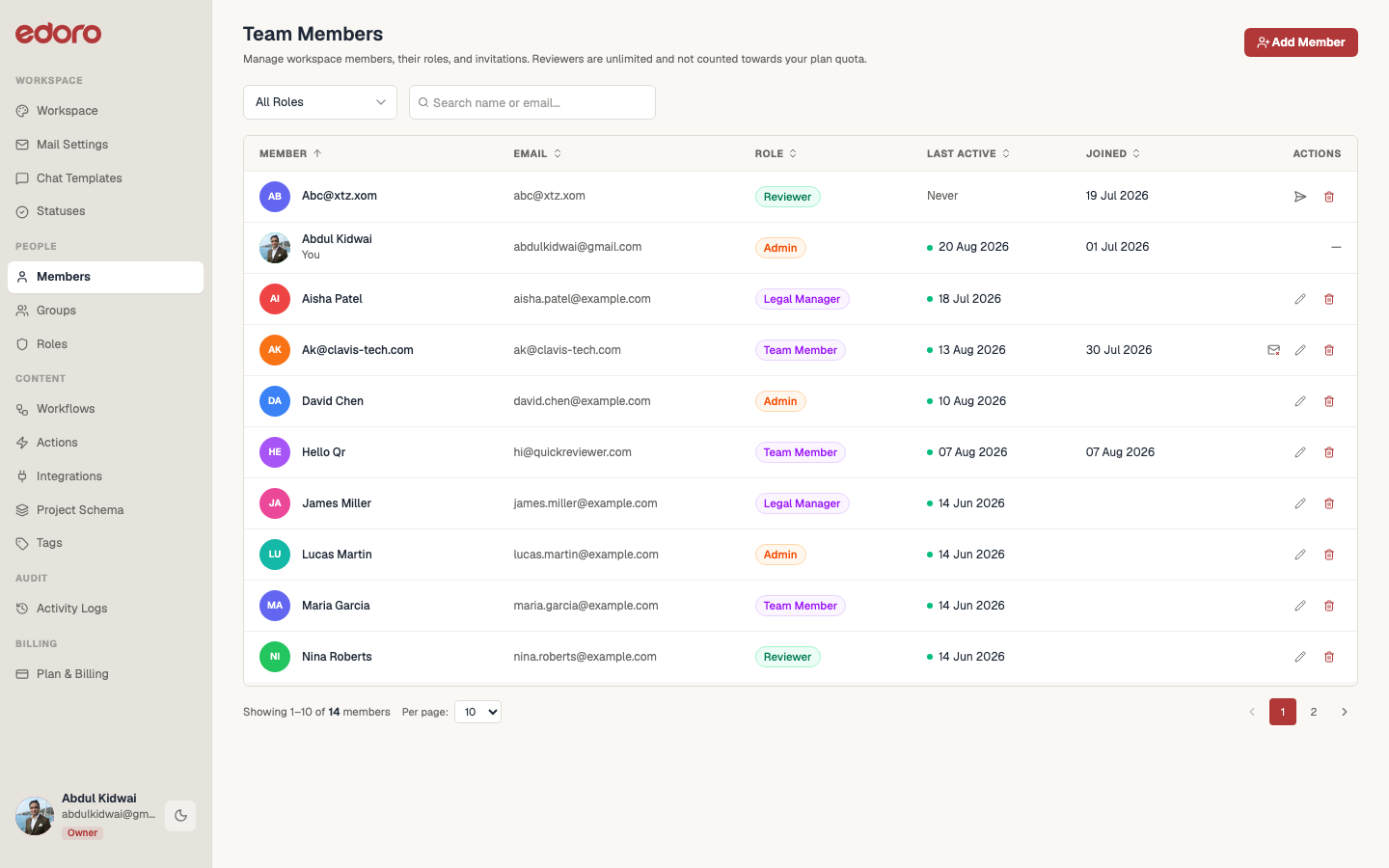
Viewing the team
The Team table lists every member with their Member, Email, Role, Last Active, and Joined date. Use the role filter (All Roles / Admin / Team Member / Reviewer / any custom role) or the search box to find someone by name or email.
Inviting a member
- Click Add Member.
- Fill in:
- Email address (required)
- First name / Last name
- Role — Admin, Team Member, Reviewer, or a custom role (see Create a custom role and set permissions). If your workspace is at its team-member seat limit, only Reviewer (unlimited) can be selected, and a message explains why.
- Optionally, Password / Confirm password — leave blank to let the member set their own password via "Forgot password" before their first sign-in.
- Interface theme — Light or Dark, as their starting preference.
- Belongs to group(s) — add them to one or more groups right away.
- Confirm to send the invite.
Editing or removing a member
- Click the pencil icon on a member's row to reopen the same form — you can change their role, group memberships, and toggle their email delivery subscription (Unsubscribe/Resubscribe).
- Click the trash icon to remove a member from the workspace permanently. This requires the "Delete member" permission.